Insights administration
In Admin, the Insights tab and its dashboards allow you to view your Tenovos reports and track content performance. With real-time data visibility into engagement metrics across all channels, you can identify which assets or collections of assets are driving awareness, loyalty, conversion, and revenue—and are making the biggest impact on your storytelling. With this information in-hand, your creative teams can focus on creating and licensing the content that drives business growth.
The Tenovos Insights Administration tabs are configurable. They may include some or all of the following tabs:
- Overview
- Assets
- Users
- Uploads
- Downloads
- Search
- Support
Tenovos provides reports on the following system activities:
- Create. Assets created in the system. Includes file uploads, story boards, collections, metadata-only assets, and versions.
- Delete. Includes the deletion (not purge) of any file, metadata, collection, story board, version, or rights management asset.
- Download. Includes asset downloads, collection downloads, transformation downloads, and downloads from the cart.
- Logout. Captures local account logout activity and users who return to the login page from the system Logout option.
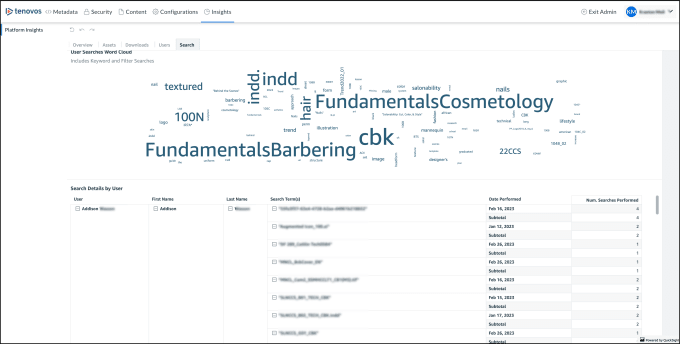
- Search. Includes all search activity generated by brand tiles, accessing collections, keyword searches, filter searches (each filter clicked), running saved searches, and API calls using Search to load content.
- Share. Includes all share activity performed by a user—sharing transformations, the Cart, individual assets, etc.
- Update. All changes to an asset or collection. Includes versions, replacing previews, relationships, metadata changes, security template updates, etc.
- View. Views are captured when a user views an asset (Asset Details page), a story board, or a collection.
- Visit. Visits are captured when a user accesses any page within Tenovos.
Custom reports
Tenovos Customer Success creates custom reports that address an organization’s specific requirements. Completing this includes:
- Identifying the key performance indicators
- Confirming the required outputs
- Validating the data source for the reports
- Finalizing the report definition
Example reports are presented in Example reports.
Example reports
This section presents examples of reports available with Tenovos Insights.
Overview reports
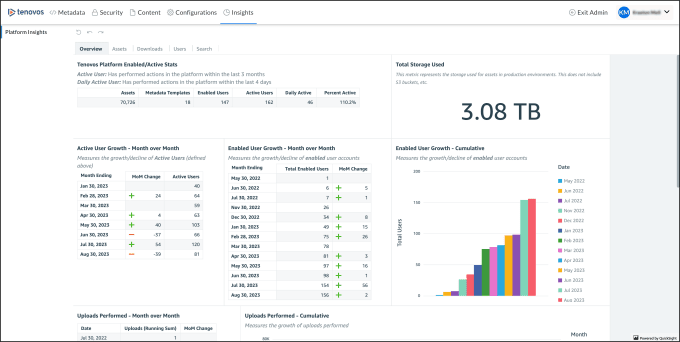
- Tenovos Platform Stats (See Example 1)
- Total Asset Storage in Production Environment (1)
- Active User Growth: Month over Month (1)
- Enabled User Growth: Month over Month (1)
- Enabled User Growth: Cumulative (1)
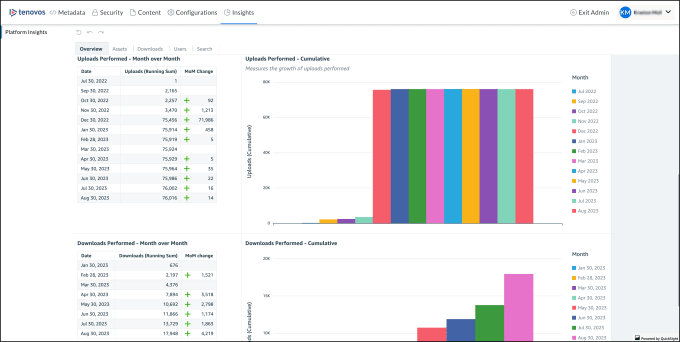
- Uploads Performed: Month over Month (See Example 2)
- Uploads Performed: Cumulative (2)
- Downloads Performed: Month over Month (2)
- Download Performed: Cumulative (2)
Example 1
Example 2
Asset reports
Asset reports include:
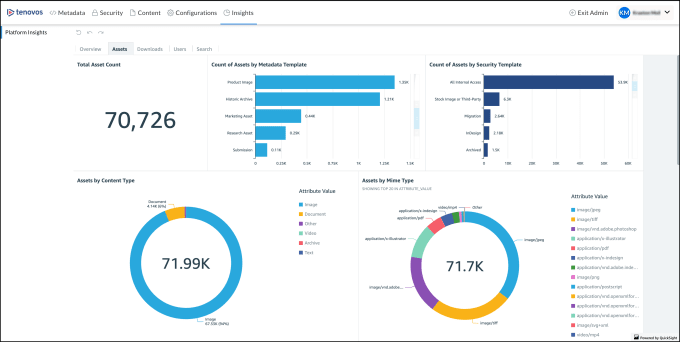
- Total Asset Count (* See Example 3*)
- Count of Assets by Metadata Template (3)
- Count of Assets by Security Template (3)
- Assets by Content Type (3)
- Assets by Mime Type (3)
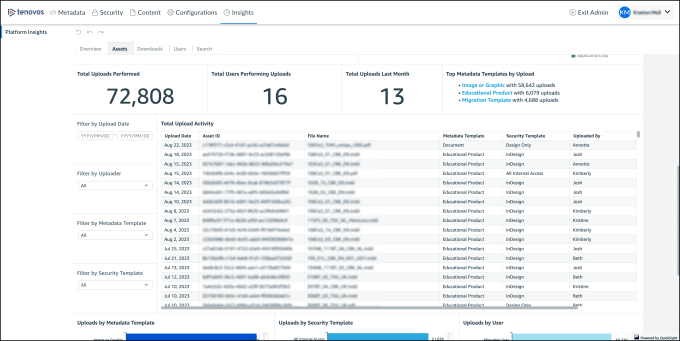
- Total Uploads Performed (See Example 4)
- Total Users Performing Uploads (4)
- Total Uploads Last Month (4)
- Top Metadata Templates by Upload (4)
Example 3
Example 4
User reports
User reports include:
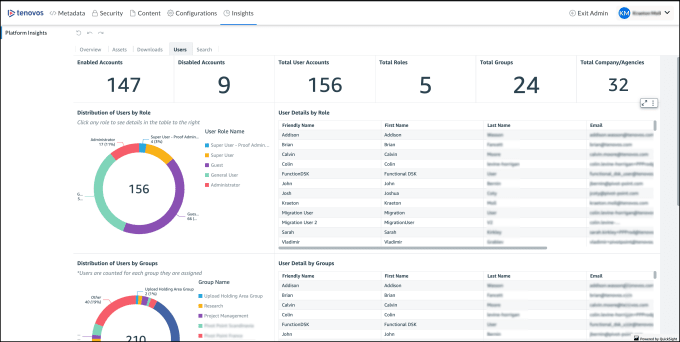
- Enabled Accounts (See Example 5)
- Disabled Accounts (5)
- Total User Accounts (5)
- Total Roles in use (5)
- Total Groups in use (5)
- Distinct count of Companies/Agencies (5)
- Distribution of Users by Role (5)
- User Details by Role (5)
- Distribution of Users by Group (5)
- User Detail by Groups (5)
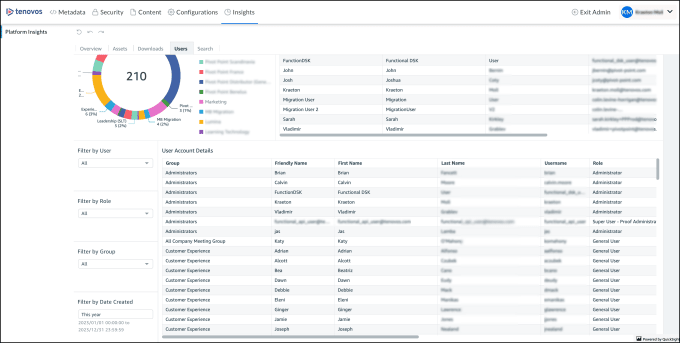
- User Account Details (user account audit) (See Example 6)
Example 5
Example 6
Upload reports
Asset upload reports can be filtered by the date created and by user.
- Total assets created
- Total assets deleted
- Assets created over time
- Assets created by user group
- Assets created by user
Download reports
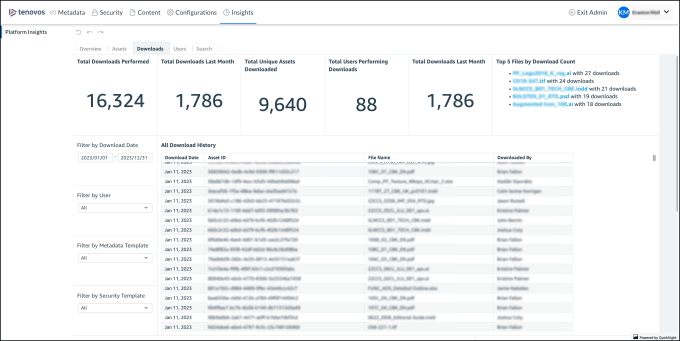
- Total Downloads Performed (See Example 7)
- Total Downloads Last Month (7)
- Total Unique Assets Downloaded (7)
- Total Users Performing Downloads (7)
- Total Downloads Last Month (7)
- Top 5 files by Download Count (7)
- All Download History (7)
- Downloads by Metadata Template (Filter by Metadata Template) (7)
- Downloads by Security Template (Filter by Security Template) (7)
- Downloads by User (Filter by User) (7)
Example 7
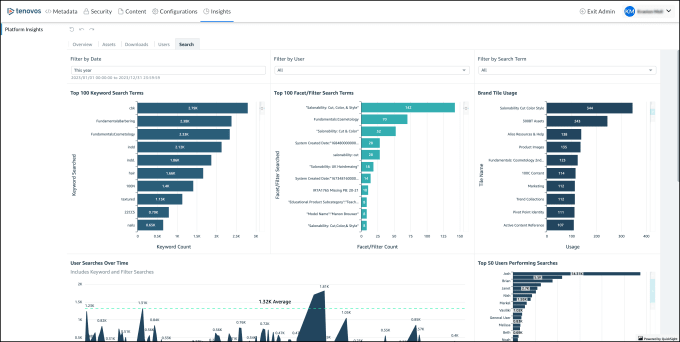
Search reports
Search reports can be filter by Date, User, and Search Term.
- Top 100 Keyword Search Terms (See Example 8)
- Top 100 Facet/Filter Search Terms (8)
- Brand Tile Usage (8)
- User Searches over Time (8)
- Top 50 Users Performing Searches (8)
- User Searches Word Cloud (See Example 9)
- Search Details by User (9)
Example 8
Example 9