Tenovos Story Boards
For a workflow overview on using Tenovos Story Boards, click here!
Tenovos Story Boards allows you to organize content into secure portals which you can easily share with internal users and external partners. Using story boards, you can ensure specific audiences get the exact content they need and none of what they don't.
With Tenovos Story Boards, you can:
-
Securely distribute curated content to the people and teams that need it through easy-to-access portals.
-
Ensure brand consistency across global markets. Leverage engaging brand portals to make only approved assets available to external-facing teams—along with the guidelines on how to use them—eliminating the risk of publishing outdated content that dilutes your brand.
-
Boost your speed to market with content story boards. Distribute your important creative assets at speed—and at scale—putting the right content in the hands of your external partners to power marketing and other campaigns or projects.
-
Automate and streamline new content distribution. Story boards leverage asset-level metadata to automatically distribute new content in the Tenovos DAM to the users who need it most, ensuring no content gets lost due to manual processes.
A story board consists of one or more story blocks—groups of assets that you can easily create using shared collections or a saved search. Collection story blocks pull content from shared collections that already exist in the Tenovos DAM. Any additions—or removals from—are automatically reflected in the story block. For a more dynamic option, you can create your story block from a saved search. Tenovos automatically adds assets to the story block that match the criteria set by that search.
When you’re ready to share a story board and its story blocks, a single click instantly publishes it to the targeted audience. After publication, you can invite internal or external users to create an account and join the story board.
NOTE: Only users with permission to view and/or manage story boards will see the Story Boards tab in their navigation bar.
A Tenovos story board and its "Forest" story block:

This guide includes the following sections:
- At-a-glance: Using Tenovos Story Boards. A workflow overview of how you will use Tenovos Story Boards.
- Getting started. Introduces the Story Boards user interface. Explains how to open a story board and how to set Tenovos Story Boards as your landing page after you login.
- Work with story boards. Create, edit, search, publish, and share story boards.
- Work with story blocks. Create, edit, reorder, and delete story blocks.
- Work with story block assets. Browse, search, download, view details about a story block asset, and add assets to the Cart.
- Manage story board security and metadata. Required story board roles and privileges, story board security, customizing the story board display.
At-a-glance: Using Tenovos Story Boards

To create and share a story board, you will:
- Create a story board. Select its security template(s), enter a title, and save it.
- Configure optional settings. These include a banner image, description, Quick Links, and a custom footer.
- Add story block(s) of assets. The assets can be from a collection or a saved search. You can add more assets after you create the story block.
- Publish the story board. This makes it available to users.
- Share the story board. You can share the story board with internal and external users via a Tenovos notification, or copy a link to share the story board via your distribution method of choice.
Getting started
This section introduces Tenovos Story Boards. It includes an overview of the Story Boards page, its story board preview cards, and story blocks. It also explains how to set Story Boards as your landing page after you log into Tenovos.
TOPICS IN THIS SECTION
- About the Story Boards page
- View all story boards
- Open a story board
- About story board cards
- Sort story board cards
- About story blocks
- Set Story Boards as your landing page
About the Story Boards page
The Story Boards page allows you to view and create story boards. It displays available story boards as individual cards. You can change the order of these cards by using the Sort (1) option.
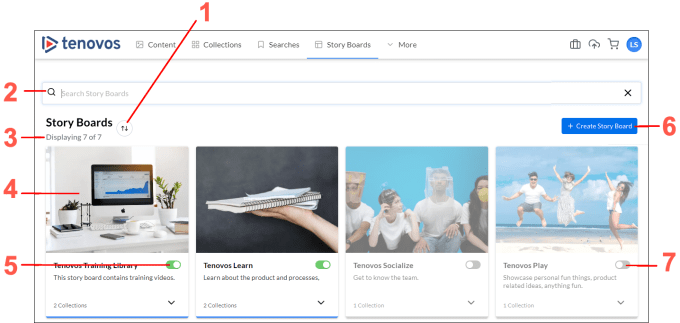
| (1) Sort the story board cards from A to Z, Z to A, or by Most Recent. | (5) Published story boards display a green toggle button. Click the toggle to Unpublish Board. |
| (2) Search for a story board. | (6) Create a new story board. |
| (3) The number of story boards displayed and the total number that are available. | (7) Unpublished story boards display a gray toggle button and a transparent gray overlay. Click the toggle to Publish Board. |
| (4) Story boards are displayed as individual “cards.” |
View all story boards
To view all available story boards, click Story Boards in the navigation bar. The Story Boards page opens with boards displayed as individual cards.
NOTE: Your user role determines what you can see and do in the Tenovos platform. If you do not see Story Boards in the navigation bar, contact your system administrator for assistance.
Open a story board
To open a story board, click Story Boards in the navigation bar. The Story Boards page opens with boards displayed as individual cards. Click a story board to open it.
About story board cards
Each story board card displays its name, description, and total collection count. Expanding the card displays the creator’s name and email address. For story board administrators, a Publish/Unpublish toggle button is also available.
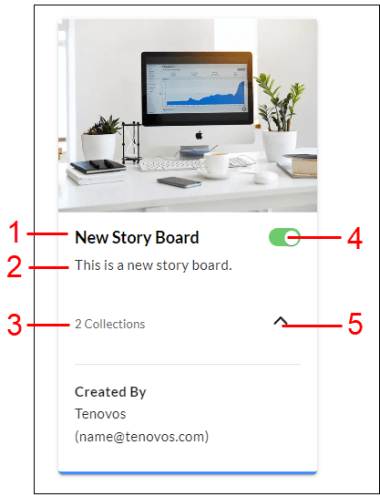
| (1) Story board title. | (4) Publish/Unpublish Board toggle button. |
| (2) Story board description. | (5) Expansion arrow. Expands the story board card and displays its creator’s username and email address. |
| (3) Collection count. The total number of story blocks in the story board. |
Sort story board cards
The Story Boards page presents all available story boards as individual cards. Click the Sort icon to open a menu with the following sort options:
- A → Z. Sort the story boards in descending order from A to Z, by
story board title. - Z → A. Sort the story boards in ascending order from Z to A, by
story board title. - Most Recent. Sort the story boards by creation date with the most recently created or updated story board on top. This is the default setting.
About story blocks
A story block is a group of assets that you add to a story board. These assets can be from a shared collection or a saved search.
- Collection story blocks pull content from shared collections that already exist in the Tenovos DAM. Any additions—or removals from —are automatically reflected in the story block.
- For a more dynamic option, you can create your story block from a saved search. The assets in the block will automatically change based on the search criteria. As assets that match the saved search criteria are added to or removed from Tenovos, those same assets will appear in or be removed from the story block.
- A single story board can have up to 12 story blocks. A single story block can contain up to 400 assets.
After you create the story block, you can continue adding individual assets to the initial group of assets from a collection or saved search.
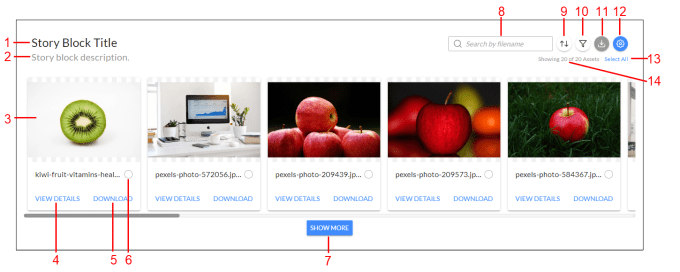
| (1) Story block title. | (8) Search story block assets by filename |
| (2) Story block description. | (9) Sort story block assets. |
| (3) Asset preview. | (10) Filter story block assets by file type. |
| (4) View Asset details. | (11) Download story block assets. |
| (5) Download asset. | (12) Modify story block. |
| (6) Select asset. | (13) Number of story block assets displayed. |
| (7) Expand story block asset view. | (14) Select all story block assets. |
Set Story Boards as your landing page
Logging into Tenovos directs you to your landing page. You can choose your landing page in User Preferences.
To set Story Boards as your landing page:
- Click the user Profile icon and select User Preferences from the dropdown menu.
- In the General page, open the Landing Page dropdown list and choose Story Board.
- Click Save Changes. When you log into Tenovos, you will be directed to the Story Boards page.
Work with story boards
A story board consists of one or more story blocks—groups of assets that you can quickly create using shared collections or a saved search. When you’re ready to share a story board and its story blocks, a single click instantly publishes it to the targeted audience. After publication, you can invite internal or external users to create an account and join the story board.
This section provides information on working with story boards, including how to create, edit, search, publish, and share them.
TOPICS IN THIS SECTION
- Create a story board
- Edit a story board
- Add story blocks to a story board
- View details about a story board
- Delete a story board
- Restore a deleted story board
- Search story boards
- Search for a story board
- Search for a story block
- Search for story board assets
- Sort story boards
- Download story board assets
- Publish a story board
- Share a story board
- Share a story board with internal users
- Share a story board with external users
- Share a link to the story board
Create a story board
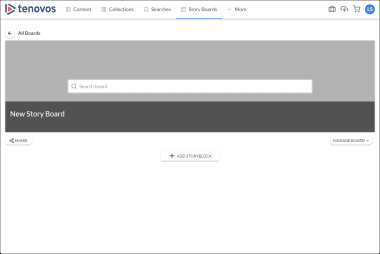
When you create a story board, you choose one or more security templates and a board title. After you save it, Tenovos generates the layout and displays your new story board. You can then add a description, banner, and story block content.
The following steps guide you through building a new story board, complete with description, banner, and story blocks. You can also add optional Quick Links and customize the story board footer. Those instructions are available in Add Quick Links to a story board and Customize a story board footer.
💡 Tip: For a workflow overview on using Tenovos Story Boards, click here!
To create a story board:
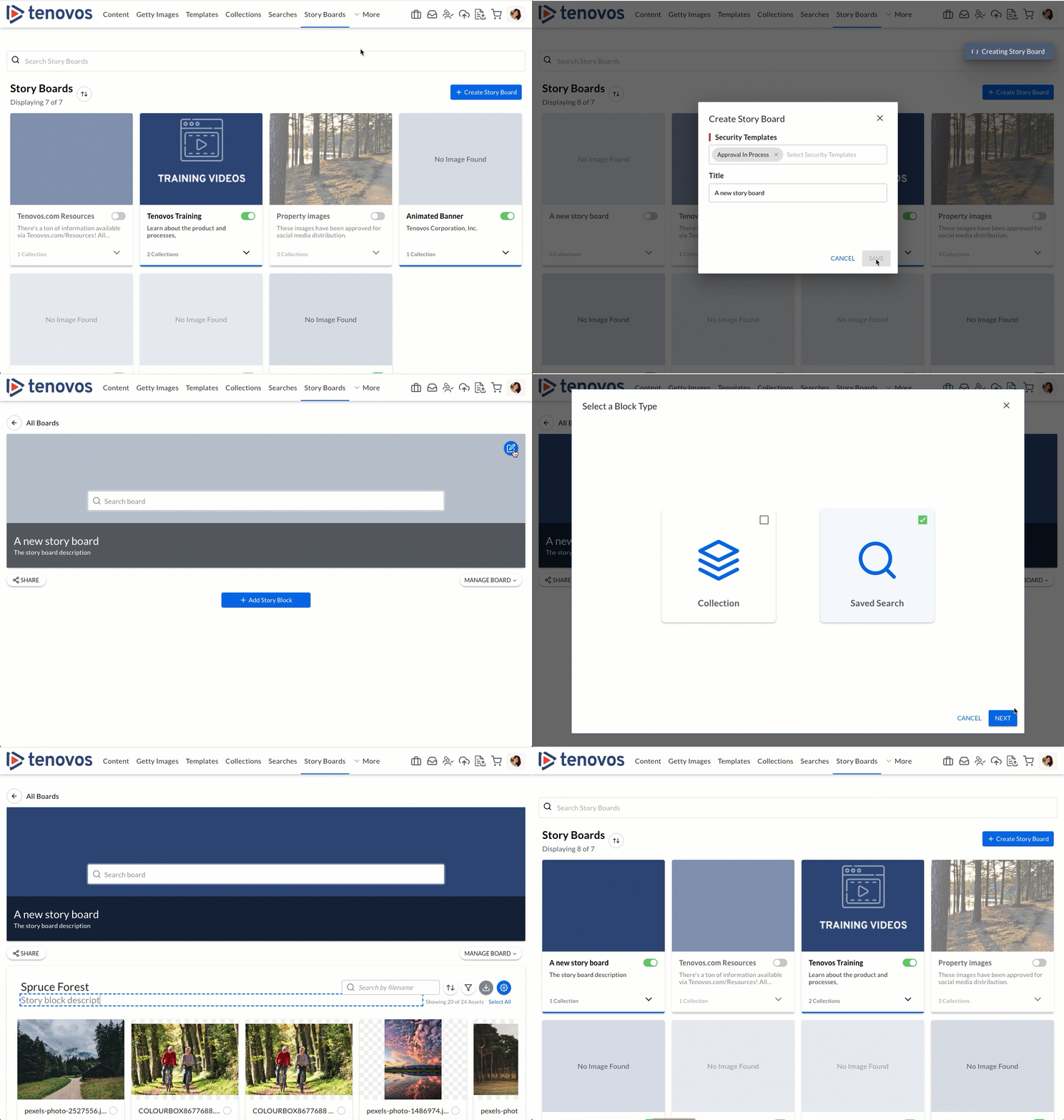
Video walkthrough: Create a story board
-
In the navigation bar, click Story Boards. The Story Boards list page is displayed.
-
Create your story board.
- Click Create story board. The following dialog box opens.

- Click the Security Templates field to display its dropdown menu, then select a security template. You can add as many templates as you need.
Security templates determine which user groups will be able to access the story board. Only users in those groups will be able to see this board. - Enter a Title for the story board, then click Save. Tenovos generates the layout and displays your new story board.
- Click Create story board. The following dialog box opens.
-
Add a story board description.
Click under the story board title to add a Description to the board. Enter your text into the field, then click anywhere in the screen outside of the field to save your entry.
-
Add a banner.
Hover your mouse over the banner area to display the Edit button. Then click it to open the Set Banner Image window.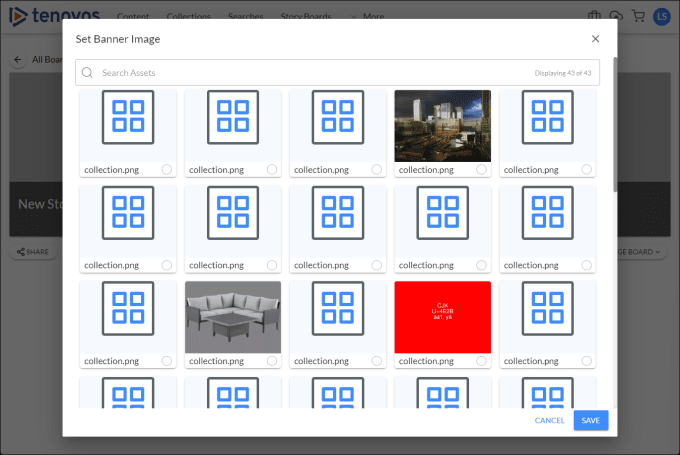
- Scroll or use the Search Assets field to find an image or video, then click its radio button to set it as the story board banner.
- Click Save to close the window. The selected asset is now the story board banner.
NOTE: Banners are responsively resized from the center of the image or video to fill the banner on all screen sizes.
-
Add a story block.
At the bottom of the story board, click Add Story Block to open the Select a Block Type window and add content to your story board.
-
Select a block type, either Collection or Saved Search.
Choose Collection to pull content from collections that already exist in the Tenovos DAM. Any additions to, or removal from, a collection are automatically reflected in your story block. For a more dynamic option, select Saved Search to automatically pull in any assets that match the criteria set by that search.-
To add a collection of assets, click Collection, then click Next. The Select Collection for Block window opens.
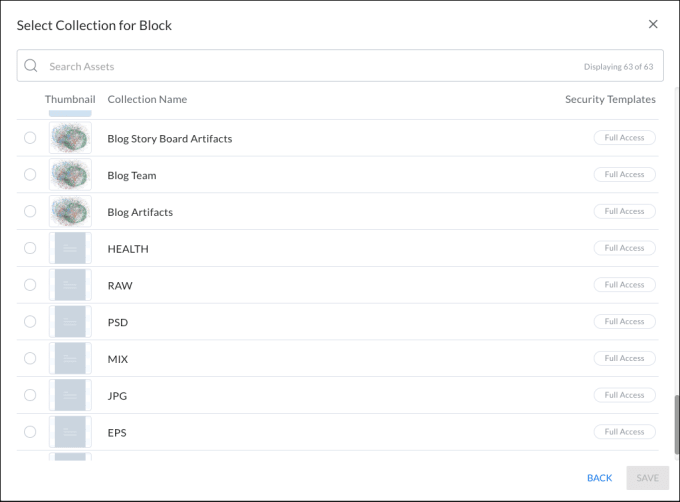
Scroll or use the Search Assets field to find a specific collection. Click the collection’s radio button to select it, then click Save to return to the story board.
NOTE: You can only create story blocks from shared collections, not private collections.
-
To add assets from a saved search, click Saved Search then click Next. The Select Saved Search for Block window opens.
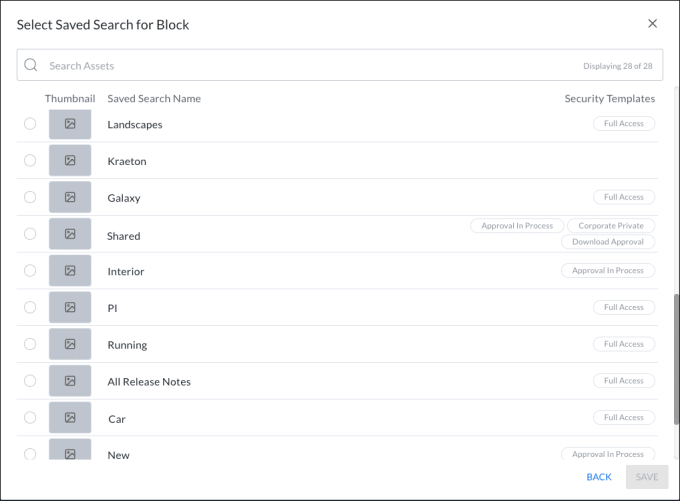
Scroll or use the Search Assets field to find a specific Saved Search. Click the search’s radio button to select it, then click Save to return to the story board.
-
-
The new story block of assets from a collection or a saved search is added to the story board below any existing story blocks. By default, the story block title matches the name of the selected Collection or Saved Search. You can click the title to modify it.
Continue adding story blocks, as necessary. -
When you're ready, you can:
- Publish the story board and make it available to users.
- Share the story board. You can share the story board with internal and external users via a Tenovos notification, or copy a link to share the story board via your distribution method of choice.
Edit a story board
To edit a story board:
- In the navigation bar, click Story Boards.
- Click a story board to open and modify it. You can edit its title, description, and story blocks.
For information about adding, deleting, and editing story blocks, see Work with story blocks.
Add story blocks to a story board
When viewing a story board, use the Add Story Block button to add story blocks.
To add story blocks to a story board:
-
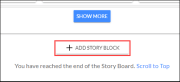
Open a story board and scroll to the bottom.
-
Click Add Story Block to open the Select a Block Type window.
-
Select a block type, either Collection or Saved Search.
Choose Collection to pull content from collections that already exist in the Tenovos DAM. Any additions to, or removal from, a collection are automatically reflected in your story block. For a more dynamic option, select Saved Search to automatically pull in any assets that match the criteria set by that search.-
To add a collection of assets, click Collection, then click Next. The Select Collection for Block window opens.
Scroll or use the Search Assets field to find a specific collection. Click the collection’s radio button to select it, then click Save to return to the story board.
NOTE: You can only create story blocks from shared collections, not private collections.
-
To add assets in a saved search, click Saved Search then click Next. The Select Saved Search for Block window opens.
Scroll or use the Search Assets field to find a specific Saved Search. Click the search’s radio button to select it, then click Save to return to the story board.
-
-
The new story block of assets from a collection or a saved search is added to the story board below any existing story blocks. By default, the story block title matches the name of the selected Collection or Saved Search. You can click the title to modify it.
Continue adding story blocks, as necessary. -
When you're ready, you can:
- Publish the story board and make it available to users.
- Share the story board. You can share the story board with internal and external users via a Tenovos notification, or copy a link to share the story board via your distribution method of choice.
View details about a story board
On the Manage Board menu, View Board Details opens the story board details page. This is the standard asset details view for the metadata asset that contains the story board configuration. In this page, you can review the applied security templates and metadata for the story board. You can also customize the story board footer and add Quick Links to external URLs.
To view a story board’s details:
-
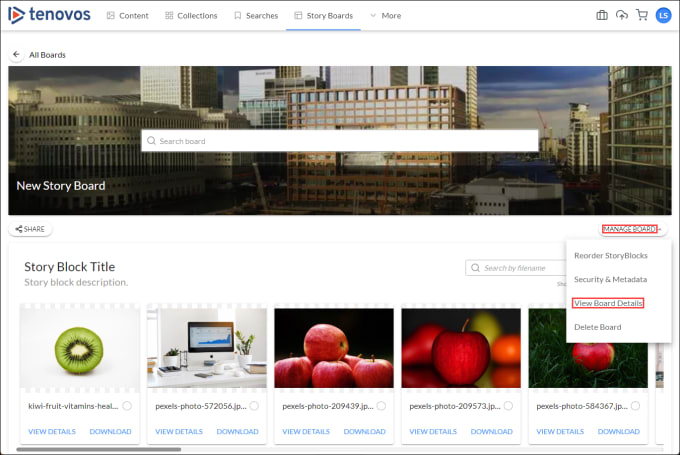
In the navigation bar, click Story Boards, then click a story board to open it.
-
On the Manage Board menu, click View Board Details. Tenovos displays the story board details. This is the standard asset details page for the metadata asset that contains the story board configuration.
From this page you can:
Delete a story board
On the Manage Board menu, Delete Board allows you to remove a story board. At the time of deletion, a confirmation message gives you the option to restore a story board. System administrators can also restore a story board from the administrative Recycle Bin.
To delete a story board:
-
In the navigation bar, click Story Boards. Then click a story board to open it.
-
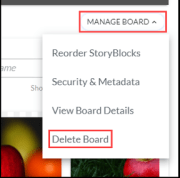
Click Manage Board and select Delete Board from the dropdown menu.
-
At the confirmation prompt, select Yes to delete it or Cancel to return to the story board. If you select Yes, a deletion confirmation message appears.
NOTE: To immediately undo a deletion, click Restore in the confirmation message box.
Restore a deleted story board
You can instantly restore a deleted story board by clicking Restore in the deletion confirmation message box.

A system administrator can also restore a story board from the administrative Recycle Bin.
Search story boards
Tenovos Story Boards offers several ways for you to locate specific story boards, story blocks, and assets.
This section explains how to search for a story board, a story block, and assets in a story board (across all story blocks). You can also search for assets in a specific story block.
TOPICS IN THIS SECTION
Search for a story board
In Tenovos Story Boards, use the search field on the Story Boards list page to find a specific story board. The search terms you enter will be matched against story board names using relevancy-style search. For example, when performing the search "green board", you can expect to see story boards titled "Green Board", "Green and Yellow Board", "Green Stars", and "Logic Board"—returned in that order. Additionally, there is no need to use wildcards for partial searches; searching for something like "Gree" will return story boards that contain "Green" or "Greek".
To search for a story board:
-
In the navigation bar, click Story Boards. A list of all defined story boards is displayed.
-
In the search bar, enter your search term.
-
Press Enter to view the search results.
Search for a story block
To search for a story block in a story board you are viewing, use your brower's Find option to search the displayed text.
Search for story board assets
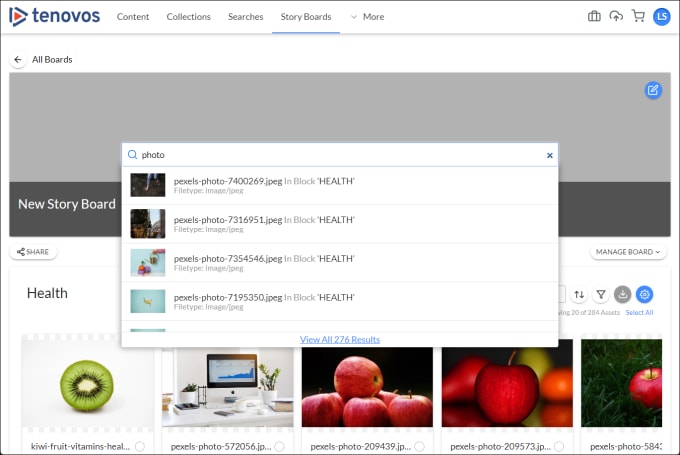
You can search for assets in a story board based on asset filename. Tags, filters, and metadata are not considered in the search. As you type, Tenovos displays relevant assets.
NOTE: The ability to search story boards and story blocks is configurable and may be disabled by administrators.
NOTE: For information about searching individual story blocks, see Search for assets in a story block.
To search all assets in a story board:
Enter text in the story board banner’s search field. The results list updates as you type.
-
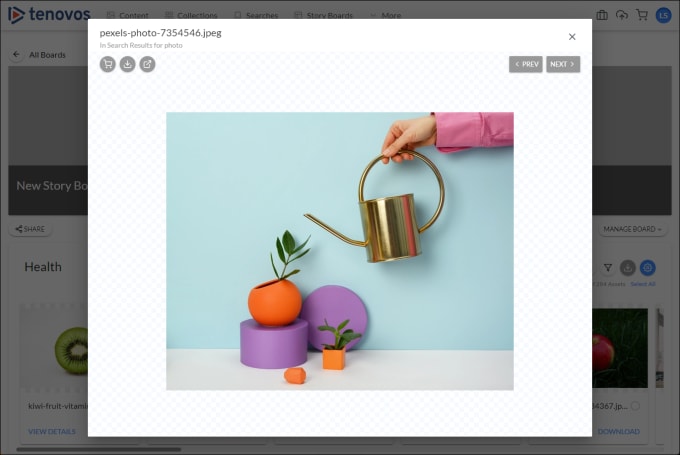
In the search results dropdown list, click a search result to open it in a preview window where you can Add to Cart, Download, or View Details about the asset.
The Previous and Next buttons enable you to browse through all search results.
-
At the bottom of the story board search results, click View All <x> Results to open a window of larger asset previews. In that preview window, you can View Details or Download a specific asset, Download Selected assets or Download All assets.
Text under the Search Results heading displays the total number of search results and a count of all assets in the story blocks.

Sort story boards
The Story Boards page presents all available story boards as individual cards. Click the Sort icon to open a menu with the following options:
- A → Z. Sort the story boards in descending order from A to Z, by story board title.
- Z → A. Sort the story boards in ascending order from Z to A, by story board title.
- Most Recent. Sort the story boards by creation date with the most recently created or updated story board on top. This is the default setting.
Download story board assets
You can download individual assets, selected assets, or all the assets in a story block.
- To download a single asset, click Download.
- To download selected assets, select the ones you want, then click Download in the story block.
- To download from an individual asset’s preview window, click Download.
- To download all assets in a story block, click Select All in the story block, then click Download. To clear all selected assets, click Clear Selection.
If no assets are selected, clicking Download will download all story block assets.
After Tenovos processes your download request, you can Save the assets.
Publish a story board
Publishing a story board makes it available to story board users with the appropriate security and role privileges.
Only story board administrators can publish and unpublish story boards.
To publish a story board:
-
In the navigation bar, click Story Boards.
-
In the story board card, click the Publish/Unpublish Board toggle to make it instantly available or unavailable to users.

- When the toggle is green, the story board is Published.
- When the toggle is gray, the story board is Unpublished.
NOTE: Only story board administrators can publish and unpublish story boards. Users without administrative privileges will not see unpublished boards or the Publish/Unpublish Board toggle.
Share a story board
The Share button below the story board banner allows you to invite internal or external users to join the story board. Sending an invite will send users an invitation email from Tenovos. Alternatively, you can copy the invite link and send it to users to invite them.
Sharing options include:
- Share a story board with internal users
- Share a story board with external users
- [Share a link to a story board](#Share a link to a story board)

Share a story board with internal users
To share a story board with internal users:
-
Click Share below the story board banner. The Share Board window opens with the Invite Internal Users tab focused.

-
Enter the username or email address to invite.
As you type, the system searches all existing users based on the text you enter and displays a list of suggestions. You can continue typing the username/email address or select it from the list.
-
Tenovos automatically generates an invitation message, but you can customize the invitation message by changing the text in the text box.
-
Click Send Invite to send the invitation (or Cancel to cancel the request).
Tenovos sends an email with a link to the story board. Recipients can follow the shared link to view the story board.
Share a story board with external users
To share a story board with external users:
-
Click Share below the story board banner to open the Share Board window.
-
Click the Invite External Users tab and enter an email address in the invitation field. To specify multiple recipients, press Enter after each entry.

-
Tenovos automatically generates an invitation message, but you can customize the invitation message by changing the text in the text box.
-
Click Send Invite to send the invitation (or Cancel to cancel the request).
Tenovos sends an email with a link to the story board. Recipients can follow the shared link to create an account and access the story board.
Share a link to a story board
To copy a story board invitation link and share it:
-
Click Share below the story board banner to open the Share Board window.
-
At the bottom of the Share Board window, click Copy Link.
The board link is copied to the Clipboard. You can share the link via email or message.
Work with story blocks
A story block is a group of assets that you add to a story board. These assets can be from a shared collection or a saved search.
- Collection story blocks pull content from shared collections that already exist in the Tenovos DAM. Any additions—or removals from —are automatically reflected in the story block.
- For a more dynamic option, you can create your story block from a saved search. The assets in the block will automatically change based on the search criteria. As assets that match the saved search criteria are added to or removed from Tenovos, those same assets will appear in or be removed from the story block.
After you create the story block, you can continue adding individual assets to the initial group of assets from a collection or saved search.
This section provides information on working with story blocks, including how to create, edit, reorder, and delete them.
TOPICS IN THIS SECTION
- Create a story block
- Edit a story block
- Change the content of a story block
- Add or remove assets from a story block
- View story block details
- Edit story block security
- Reorder story blocks in a storyboard
- Delete a story block
Create a story block
Story blocks are groups of assets from a shared collection or a saved search that are added to story boards.
By default, new story blocks inherit the Security Templates of the story board they are added to. However, the collections, saved searches, and assets within the story blocks, as well as the story blocks themselves, each have their own Security Templates. These templates may be more restrictive than those of the story board. As a result, users with different privileges may see varying numbers of story blocks or assets in a story board, depending on the Security Templates applied. Administrators will see all story blocks and assets in a story board.
To add a story block to a story board:
-
In the navigation bar, click Story Boards, then click a story board to open it.
-
At the bottom of the story board, click Add Story Block to open the Select a Block Type window and add content to your story board.
-
Select a block type, either Collection or Saved Search.
Choose Collection to pull content from collections that already exist in the Tenovos DAM. Any additions to, or removal from, a collection are automatically reflected in your story block. For a more dynamic option, select Saved Search to automatically pull in any assets that match the criteria set by that search.- To add a collection of assets, click Collection, then click Next. The Select Collection for Block window opens. Scroll or use the Search Assets field to find a specific collection. Click the collection’s radio button to select it, then click Save to return to the story board.
NOTE: You can only create story blocks from shared collections, not private collections.
- To add assets in a saved search, click Saved Search then click Next. The Select Saved Search for Block window opens.
- Scroll or use the Search Assets field to find a specific Saved Search. Click the search’s radio button to select it, then click Save to return to the story board.
- To add a collection of assets, click Collection, then click Next. The Select Collection for Block window opens. Scroll or use the Search Assets field to find a specific collection. Click the collection’s radio button to select it, then click Save to return to the story board.
-
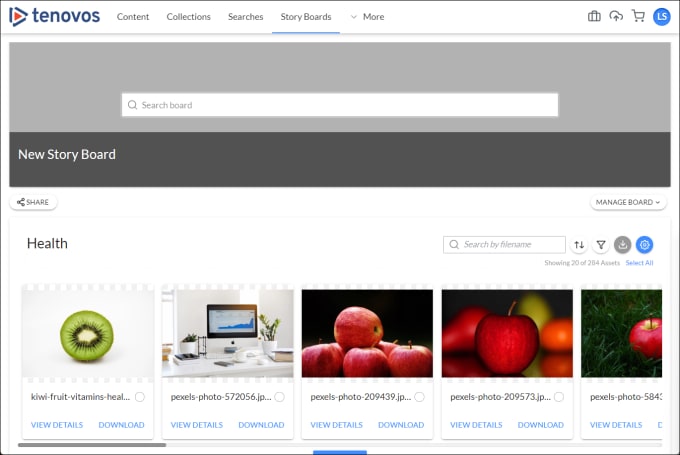
The new story block of assets from a collection or a saved search is added to the story board below any existing story blocks.
-
By default, the story block title matches the name of the selected Collection or Saved Search. You can click the title to modify it.
-
Click under the story block title to add a Description.
-
Edit a story block
You can edit a story block’s title, description, Security templates, and content.
To edit a story block:
-
In the navigation bar, click Story Boards, then click a story board to open it.
-
Scroll to the story block you want to modify.
- To edit the story block’s title, click the title and enter a new title in the field.
- To edit a story block’s description, click the description and enter a new description in the field.
- To edit a story block’s Security Templates, click the story block Settings, then click Edit Security
- To edit a story block’s content, click the story block Settings, then click Change Content.
Change the content of a story block
A story board’s creator or an administrator can change the asset collection or saved search in a story block. Changing the collection or saved search in a story block will change the assets it displays.
To change the content of a story block:
-
In the navigation bar, click Story Boards, then click a story board to open it.

-
Click Settings, then click Change Content. The Select a Block Type screen appears.
-
Click Collection to choose from a list of shared collections or click Saved Search to choose from a list of saved searches. NOTE: You can only create story blocks from shared collections, not private collections.
-
Select a collection or saved search, then click Save to return to the story board. The story block asset content is updated to match your selection. The title and description are unchanged.
Add or remove assets from a story block
After you create a story block from a collection or saved search of assets, you can continue adding assets from the Content gallery or the Cart.
NOTE: Adding an asset to a story block that was created from a collection does not add that asset to the original collection.
To add or remove assets from a story block:
-
In the navigation bar, click Story Boards, then click the story board to open it.
-
Scroll to the story block, click Settings, then click Add Assets. The Add or Remove Assets on Block window opens.
IMAGE: Add or Remove Assets on Block window

-
Display the Content gallery or the Cart tab, then use the Search Assets field to select assets to add or deselect assets to remove.
💡 TIP: You can select or deselect assets from both the Content gallery and the Cart—Tenovos will remember your selections across tabs.
NOTE: Adding an asset to a story block that was created from a collection does not add that asset to the original collection.
-
Click Set Story Block Assets to save your changes.
View story block details
In a story block, View Board Details on the Settings menu opens the story block details page. This is the standard asset details view for the metadata asset that contains the story block configuration. From this page, you can edit the applied security templates and the metadata for the story board.
To view a story block details page:
-
In the navigation bar, click Story Boards, then click a story board to open it.
-
Scroll to the story block, click Settings, then click View Board Details. The story block details page opens.
-
On the Manage Board menu, click View Board Details. Tenovos displays the story board details. This is the standard asset details page for the metadata asset that contains the story board configuration.
From this page you can:
-
Edit the story board metadata, including the Block Title and Block Description.
IMPORTANT: Do not modify the system-created Metadata Template, Block Type, or Block Object ID.
Edit story block security
Story blocks have several layers of security. New story blocks are created with the same Security Templates as the board to which they are added. In addition, the collections, saved searches, and assets in the story blocks have their own Security Templates which may be more restrictive than the board or block they are on. This means it is possible for an administrator to see a story board with several populated story blocks, while another user sees the same board with fewer blocks, and each of those blocks could have fewer assets.
You can change the security templates that are applied to a story block via Edit Security on the story block Settings menu.
To edit a story block's security templates:
-
In the navigation bar, click Story Boards, then click a story board to open it.
-
Scroll to the story block, click Settings, then click Edit Security. The Story Block Security & Metadata window opens.
-
In the Security Templates field:
- To remove a security template, click its X in the Security Templates field.
- To add security templates, click the field to choose from a dropdown list of available templates.
-
Click Save to apply the security templates updates, or click the X to close the window without saving any changes.
Reorder story blocks in a story board
To reorder story blocks in a story board:
-
In the navigation bar, click Story Boards, then click a story board to open it.
-
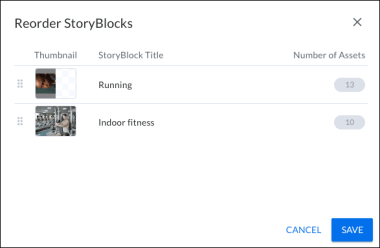
Click Manage Board to open the menu, then click Reorder Story Blocks. The Reorder Story Blocks window appears.
-
Click and drag a story block to its new location. Then click Save.
Delete a story block
To delete a story block:
-
In the navigation bar, click Story Boards, then click a story board to open it.

-
Click Settings, then click Delete Block. A delete block confirmation screen appears.

-
In the confirmation prompt, click Delete to confirm the deletion or click Cancel to close the window and return to the Story Boards page without deleting the story block.
NOTE: To immediately undo a delete, click Restore in the confirmation message box.
Work with story block assets
Assets in a story block are groups of assets from a shared collection or a saved search, or have been manually added to the original group of assets after the story block is created. This section provides information about working with those assets including how to browse, search, download, and view details about a story block asset.
TOPICS IN THIS SECTION
- Browse story block assets
- Sort story block assets
- Preview story block assets
- Filter story block assets
- Search for assets in a story block
- Download story block assets
- Add a story block asset to the Cart
- View details about a story block asset
Browse story block assets
When browsing story block assets, you can:
To browse story block assets:
- Click Show More at the bottom of the story block to expand the display of assets. Use the scrollbar to move the asset display.
- Click a story block asset to open its preview window, then use the Previous and Next buttons to move between the other assets in the story block.
Sort story block assets
To sort assets in a story block:
-
In the story block, click Sort. The Sort Order menu opens.
-
On the Sort Order menu, choose one of the following:
- A → Z. Sort the story block assets in descending order from A to Z, by asset name.
- Z → A. Sort the story block assets in ascending order from Z to A, by
asset name. - Most Recent. Sort the story blocks by creation date with the most recently created or updated story board on top. This is the default setting.
The sort order instantly updates when you make your selection.
Preview story block assets
The asset preview window allows you to browse higher resolution previews of assets in a story block or search results.
To open the asset preview window:
- In a story block or the Search Results pane, click an asset thumbnail.
- In search results, click an asset thumbnail.
The asset preview window opens.

From the asset preview window, you can:
- Add to Cart.
- Download the asset.
- View Details about the asset.
Filter story block assets
To filter the assets in a story block:
-
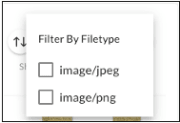
In the story block, click Filter. The filter menu opens, listing the filetypes of all assets in the story block.
-
Choose the file type(s) by which to filter the story block assets. The story block display instantly updates as you make your selections.
Search for assets in a story block
You can search for assets in a story block based on asset filename. Tags, filters, and metadata are not considered in the search.
NOTE: The ability to search story boards and story blocks is configurable and may be disabled by administrators.
NOTE: For information about searching for assets in a story board, see Search for story board assets.
To search for assets in a story block:
In the search box at the top right of the story block, enter a search query. As you type, Tenovos re-orders the story block assets to display assets that match your query.
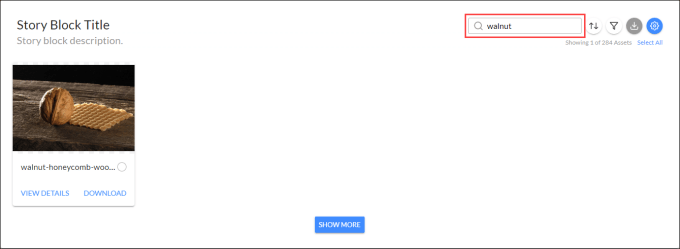
- Tenovos searches for assets in the story block with filenames that approximately match the search query.
- The assets are filtered as you type.
- Text near the top right displays the total number of search results and the total number of assets in the story block.
Download story block assets
You can download individual assets, selected assets, or all the assets in a story block.
- To download a single asset, click its Download button.
- To download selected assets*,* select the ones you want, then click
Download in the story block. - To download from an individual asset’s preview window*,* click Download.
- To download all assets in a story block, click Select All in the story block, then click Download. To clear all selected assets, click Clear Selection.
If no assets are selected, clicking Download will download all story block assets.
After Tenovos processes your download request, you can Save the assets.
Add a story block asset to the Cart
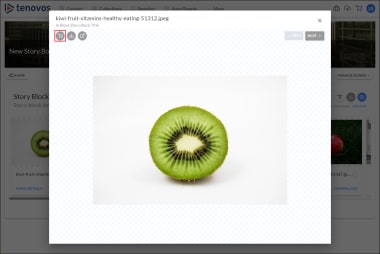
To add a story block asset to the Cart, click the thumbnail to open its preview window, then click **Add to Cart **.
View details about a story block asset
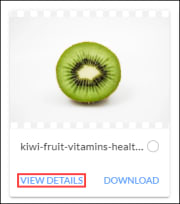
Information about an asset is available on its Asset Details page. This page shows a larger preview image and the asset’s filename and metadata.
To view details about a story block asset:
-
In the asset card, click View Details. The Asset Details page opens.
-
Click the asset thumbnail to open its preview window, then click View Details. The Asset Details page opens.
Manage story board security and metadata
In a story board, the Manage Board menu allows you to complete a variety of management tasks related to security and metadata. You can also Reorder Story Blocks and Delete Board. This section provides information about security and metadata-related edits, including how to add Quick Links to a story board page and customize its footer.
TOPICS IN THIS SECTION
- View security templates and metadata
- View story board details
- Work with security
- Story board security templates
- Edit a story board's security templates
- Story board roles and privileges
- Add Quick Links to a story board
- Customize a story board footer
View security templates and metadata
On a story board's Manage Board menu, Security & Metadata displays the applied Security Templates and a summary about the story board. You can modify the security templates from this screen; the metadata summary is read-only.
To view a story board’s security templates and metadata:
-
In the navigation bar, click Story Boards, then click a story board to open it.
-
On the Manage Board menu, click Security & Metadata. The Story Board Security & Metadata window opens.
-
Security Templates. Click the "X" to remove a security template. Or click in the field to select additional security templates.
-
Metadata. This is read-only system metadata about the story board including who it was Created By, Last Updated by, the Created Date, and the Last Updated Date.
For information about editing the metadata, see View story board details.

-
View story board details
On the Manage Board menu, View Board Details opens the story board details page. This is the standard asset details view for the metadata asset that contains the story board configuration. In this page, you can review the applied security templates and metadata for the story board. You can also customize the story board footer and add Quick Links to external URLs.
To view a story board’s details:
-
In the navigation bar, click Story Boards, then click a story board to open it.
-
On the Manage Board menu, click View Board Details. Tenovos displays the story board details. This is the standard asset details page for the metadata asset that contains the story board configuration.
From this page you can:
Work with security
Story boards have several layers of security. New story blocks are created with the same Security Templates as the board to which they are added. In addition, the collections, saved searches, and assets in the story blocks have their own Security Templates which may be more restrictive than the board or block they are on. This means it is possible for an administrator to see a story board with several populated story blocks, while another user sees the same board with fewer blocks, and each of those blocks could have fewer assets.
TOPICS IN THIS SECTION
- Story board security templates
- Edit a story board's security templates
- Story board roles and privileges
Story board security templates
Administrators and users with permission to manage story boards can set security templates on the boards they create. Users will only see the story boards they have permission to view.
When you first define a story board, you must choose at least one security template—predefined settings that decide the privileges required to interact with a feature. You can modify the security templates applied to a story board at any time.
In the Manage Board menu, the Security & Metadata option allows you to quickly view and modify the security templates applied to a story board. It also displays read-only system metadata about the story board including who it was Created By, Last Updated by, the Created Date, and the Last Updated Date.
Story Boards > Manage Board > Security & Metadata:

Edit a story board’s security templates
You can change the security templates that are applied to a story board via the Security & Metadata option and the View Board Details option, both of which are on the Manage Board menu.
To edit a story board’s security templates:
-
In the navigation bar, click Story Boards, then click a story board to open it.
-
On the Manage Board menu, click Security & Metadata. The Story Board Security & Metadata window opens. It displays the security templates applied to a story board.
-
In the Security Templates field:
- To remove a security template, click its X in the Security Templates field.
- To add security templates, click the field to choose from a dropdown list of available templates.
-
Click Save to apply the security templates updates, or click Cancel to close the window without saving any changes.
Story board roles and privileges
There are four story board privileges that an administrator can assign to Tenovos user roles in Admin > Security > Roles.
- Story Board Management. The user can create, modify, and view published and non-published story boards, and create and modify story blocks.
- Story Board Share External. The user can share story boards with external users.
- Story Board Share Internal. The user can share story boards with internal users.
- Story Board View. The user can only view published story boards.
Add Quick Links to a story board
You can add links to a story board. Clicking a Quick Link opens it in a new tab.
To add links to a story board:
-
In the navigation bar, click Story Boards, then click a story board to open it.
-
On the Manage Board menu, click View Board Details. The story board's details screen opens.
-
Click Edit Metadata. The screen refreshes to display editable fields.
-
Scroll to Link Table and enter the Quick Link information.
- Link Label. The text displayed in the Quick Link menu.
- Link Reference URL. The destination URL for the Quick Link.
- Link Sort Order. The link display order. Links are displayed in ascending order, beginning with the number 1.
-
Click Save.
Customize a story board footer
You can modify the text that is displayed in the footer of individual story boards.
To customize the footer of a story board:
-
In the navigation bar, click Story Boards, then click a story board to open it.
-
On the Manage Board menu, click View Board Details. The story board's details screen opens.
-
Click Edit Metadata. The screen refreshes to display editable fields.
-
Scroll to Board Footer HTML and enter the text. You can enter information as straight text or in HTML.
-
Click Save.