InDesign assets
Tenovos supports the upload and management of compressed InDesign packages and individual InDesign files. When unpacking an InDesign package, Tenovos automatically creates Placed Graphic relationships between the InDesign .INDD file and its linked assets. For InDesign documents with missing or multiple potential matches for linked files, users can select the required assets.
NOTE: Management of InDesign documents with Tenovos is only available to customers who have enabled it.
If your workflow does not require unpacking InDesign packages into their individual components, the InDesign flow can be disabled. Please contact your Tenovos Customer Success representative for details.
InDesign relationships
Tenovos automatically creates Placed Graphic relationships between an InDesign file and its linked assets. If a linked asset cannot be identified in the Content gallery, the link is marked as Unconfirmed or Missing.
A confirmed relationship link is created only when a match is made on both the file name and file size, and there is only one match. In cases where there are matches on filename only, the results (up to 100) will be displayed for selection to create or confirm the link.
Placed graphic
Linked assets that are unique in the Content gallery are assigned Placed Graphic relationships.
Unconfirmed
Linked assets with multiple possible matches in the Content gallery are assigned Unconfirmed relationships. Hovering over these relationships displays the filename of the Unconfirmed linked asset. You can open each asset in a new tab to compare their differences, then select the appropriate match and confirm your selection.
Missing
Links with no asset matches in the Content gallery are marked as Missing. Hovering over these links displays the filename of the Missing linked assets. You can click each filename to open a dialog in which you can enter the asset id and preview the relationship, then confirm that relationship.
Uploading an InDesign package
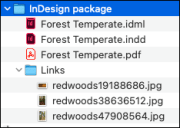
An InDesign package must include an .INDD file and a Links sub-folder. When you upload the compressed InDesign package, Tenovos extracts the .INDD file and linked assets. All other package files—such as fonts, .pdf, and .idml—are maintained in the uploaded compressed file, but are not extracted from the file.
NOTE: Tenovos supports Adobe 2023 files in .zip and .7z extractions. Adobe 2024 files must be converted to Adobe 2023 prior to compression.
InDesign package files:
InDesign package upload workflow:
-
Package the InDesign project and compress it in a .zip or .7z file.
The package folder must include a:- .INDD file
- Links sub-folder.
NOTE: Tenovos supports Adobe 2023 files in .zip and .7z extractions. Adobe 2024 files must be converted to Adobe 2023 prior to compression.
-
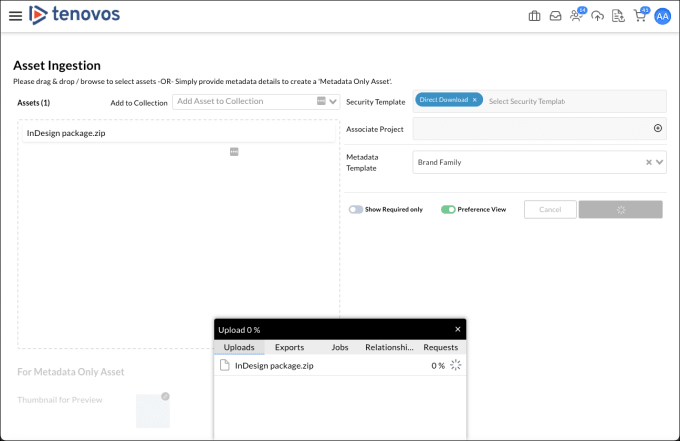
Upload the InDesign package .zip or .7z file to Tenovos.
Tenovos extracts the .INDD file and all linked assets. All other package files—such as fonts, .pdf, and .idml—are maintained in the ingested compressed package, but are not extracted.
NOTE: Tenovos inspects the contents of compressed files for matches to existing assets. Assets that are already in the Content gallery are not re-ingested.
-
Tenovos processes the InDesign file:
-
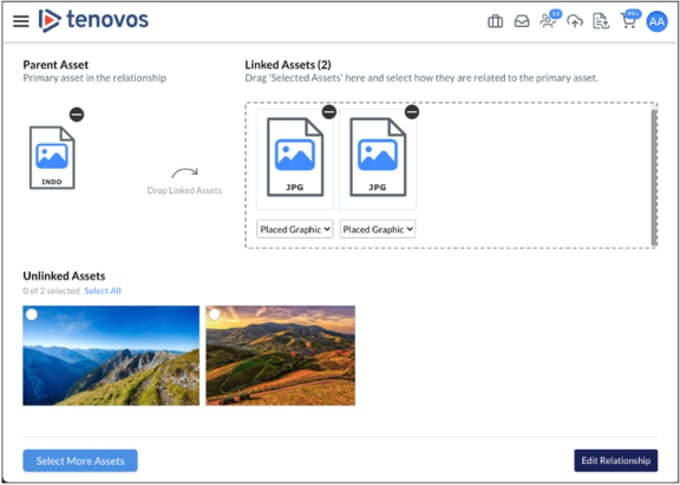
For links to unique assets in the Content gallery, Tenovos creates Placed Graphic relationships for each linked asset. If a linked asset in the package already exists in the Content gallery, the asset is not uploaded. A Placed Graphic relationship is created between the new .INDD file and the existing asset.
-
For links with multiple possible asset matches in the Content gallery, Tenovos creates Unconfirmed relationships to each possible match.
-
For links with no asset matches in the Content gallery, Tenovos marks them as Missing.
-
Uploading an InDesign file
You can upload InDesign files with or without asset links. When you upload an individual InDesign file with asset links, Tenovos creates Placed Graphic relationships between the .INDD file and its linked assets in the Content gallery. If there are missing or multiple possible matches for linked files, you can select the required assets.
InDesign file upload workflow:
-
Upload a single .INDD file with or without linked assets.
-
Tenovos processes the InDesign file:
- For links to unique assets in the Content gallery, Tenovos creates Placed Graphic relationships for each linked asset.
- For links with multiple possible asset matches in the Content gallery, Tenovos creates Unconfirmed relationships to each possible match.
- For links with no asset matches in the Content gallery, Tenovos marks them as Missing.
Assigning linked assets
For InDesign documents with Missing or multiple potential matches for linked assets (i.e., Unconfirmed), users can select the required assets.
A confirmed relationship link is created only when a match is made on both the file name and file size, and there is only one match. In cases where there are matches on filename only, the results (up to 100) will be displayed for selection to create or confirm the link.
Unconfirmed relationships
Links that have multiple possible matches in the Content gallery are assigned Unconfirmed relationships.
Unconfirmed relationships:

Hovering over an Unconfirmed link displays the Unconfirmed Link dialog and a list of all possible asset matches.
Unconfirmed Link dialog:
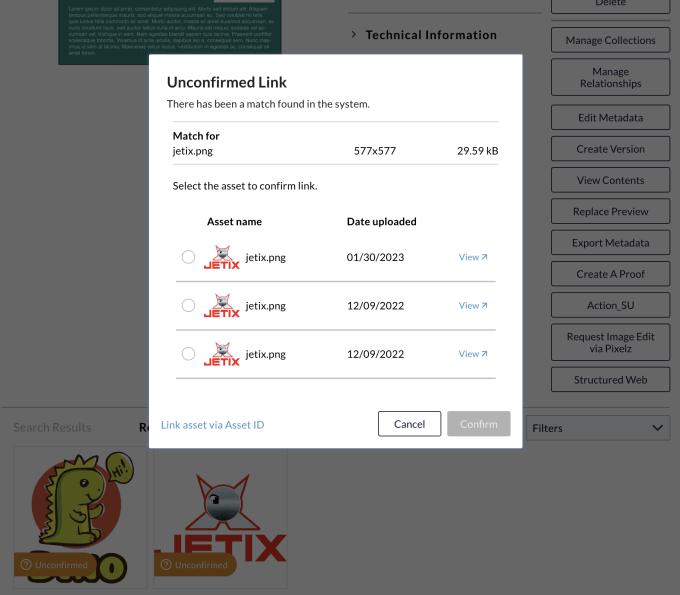
You can open each asset in a new tab to View and compare their differences, then select the appropriate match to the unconfirmed asset and Confirm your selection.
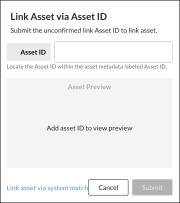
If you prefer to link the unconfirmed asset with an ID, click Link asset via Asset ID. Enter the Asset ID, then click Submit.
Link Asset via Asset ID dialog:
Missing relationships
Links with no asset matches in the Content gallery are marked as Missing.
Missing relationships:
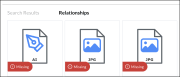
Hovering over a link, displays the filename of the missing linked assets.
Hover over a link to view the filename:

Click the filename to open the Link Asset via Asset ID dialog.
Link Asset via Asset ID dialog:
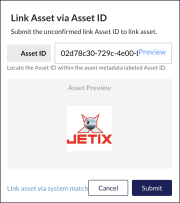
Enter the Asset ID to view a preview, then click Submit to confirm your selection for the missing asset link.
Link Asset via Asset ID dialog with asset preview:
Downloading InDesign files
For an InDesign (.INDD) file, the Download option in Asset Details retrieves the .INDD file and all linked graphic relationships. This request is processed through the Jobs Center.
Downloading InDesign assets from other locations in Tenovos—for example the Cart or the Content gallery—only retrieves the selected .INDD file(s); linked graphics are not included in the download request.