Requests - Review, assign, approve
Upload requests and download requests are sent to the Requests Inbox of all users ("approvers") with the Requests Inbox and Request Management privileges. This allows them to view the Requests inbox and review asset upload and download requests for approval and/or rejection.
Approvers can assign assets to another approver, or they can complete the review themselves and approve or reject the request. An email notifies requesters of their request status.
When reviewing asset upload requests, approvers can:
- Assign approvers to upload requests
- Bulk edit assets in an upload request
- Approve assets in an upload request
- Reject assets in an upload request
When reviewing asset download requests, approvers can:
View the Requests inbox
In the Requests inbox, click the tabs to view All requests, Upload requests, Download requests, or Completed requests.
Requests inbox—All, Upload, Download, and Completed requests:
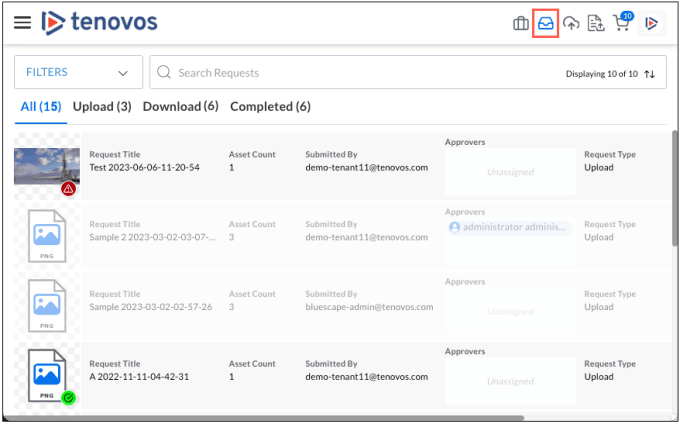
For each request, the Requests inbox displays:
- Thumbnail of an asset. A thumbnail of the requested asset to upload or download.
- Request Title. Title of the submitted request.
- Asset Count. Number of assets requested for upload or download.
- Submitted By. Name of the requester.
- Approvers. Name of the approver.
- Request Type. The type of request, either Upload or Download.
- Request Status. Status of the Download Request.
Review upload requests
The Upload Request feature allows administrators to require that assets submitted by certain users are reviewed and approved before they are available in the Content gallery.
- Approved assets appear in the Content gallery. They are available to users as permitted by their security templates.
- Rejected assets remain in the system, but their visibility is limited. If necessary, an administrator can delete rejected assets to remove them from the system.
For more details about upload requests, see the Upload requests guide. Topics include Upload assets for approval, Feature requirements, Metadata template, and Security template.
This section includes the following topics:
- Assign approvers to upload requests
- Bulk edit assets in an upload request
- Approve assets in an upload request
- Reject assets in an upload request
Assign approvers to upload requests
You can assign approvers to assets in individual upload requests or assign them to multiple upload requests simultaneously.
ASSIGN ASSETS IN A SINGLE UPLOAD REQUEST
You can assign assets in a request to yourself or to other approvers. Only one approver can be assigned to each asset. For unassigned assets, the approver who approves or rejects an asset is automatically assigned to that asset’s upload request.
NOTE: To quickly assign all assets in an upload request to a single approver, follow the steps in Assign multiple upload requests.
To assign assets in an upload request to an approver:
-
In the navigation bar, click Requests to open the Requests inbox.
-
Display the Upload tab and click a request to open its Upload Request screen.
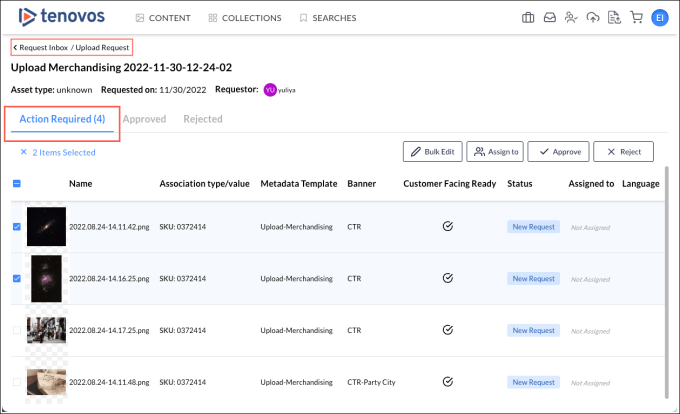
The Action Required tab displays all assets in the upload request that have not yet been approved or rejected. To view asset details, click the thumbnail.
-
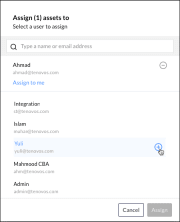
Select the assets in the request that you want to assign to an approver and then click Assign to in the task bar. The Assign (x) assets to window opens.
NOTE: The task bar in the Upload Request screen appears after you select one or more assets.
-
In the Assign (x) assets to window, scroll to the user’s name/email address or enter it in the search field. Then hover over the name in the list and click its icon to select it.
NOTE: Only one approver can be assigned to each asset.
-
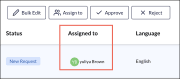
Click Assign to save your selection and close the window. You are returned to the Upload Request screen with the selected user displayed in the Assigned to column for the asset(s).
ASSIGN MULTIPLE UPLOAD REQUESTS
You can assign multiple upload requests to yourself or to another approver. The upload requests that you select must be Unassigned. You can only assign one approver to your selections.
NOTE: You can also complete the following steps to quickly assign all assets in an upload request to a single approver.
To assign multiple upload requests to an approver:
-
In the navigation bar, click Requests to open the Requests inbox.
-
Select one or more Upload requests, then click Assign Approver in the task bar.
NOTE: The Assign Approver option appears after you make at least one selection.
-
In the Assign (x) requests to window, select the approver or click Assign to me to select yourself.
-
Click Assign to save your selection and close the window. You are returned to the Requests inbox.
Bulk edit assets in an upload request
In the Requests inbox, you can bulk edit assets in upload requests in the Action Required, Approved, or Rejected tabs. The Bulk Edit option operates the same as when applied via the Content gallery.
NOTE: All edits go into effect immediately, not after the asset is approved.
To bulk edit assets in an upload request:
-
In the navigation bar, click Requests to open the Requests inbox.
-
Scroll to an upload request and click its name to open the Upload Request screen.
-
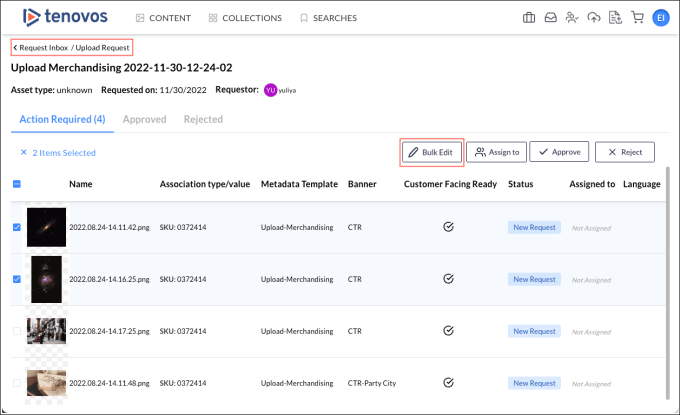
You can bulk edit assets in the Action Required, Approved, or Rejected tabs. Select the assets in the request that you want to modify, then click Bulk Edit in the task bar. The Bulk Edit (x) window opens.
NOTE: The task bar in the Upload Request screen appears after you select one or more assets.
-
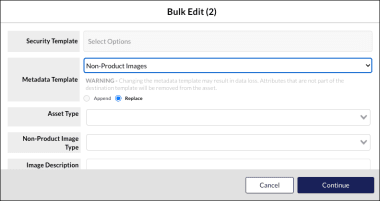
Make your metadata changes then click Continue.
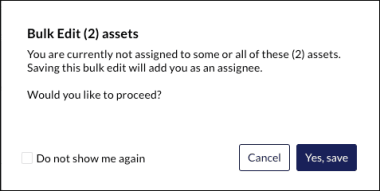
If you are not already assigned to the assets, saving the bulk edit will add you as an assignee.
-
Click Yes, save.
NOTE: All edits go into effect immediately, not after the asset is approved.
Approve assets in an upload request
You can approve assets in an upload request without modifying their security or metadata templates.
IMPORTANT: You cannot modify the status of an asset after you set its Request Status to Approved or Rejected.
To approve assets in a request:
-
In the navigation bar, click Requests to open the Requests inbox.
-
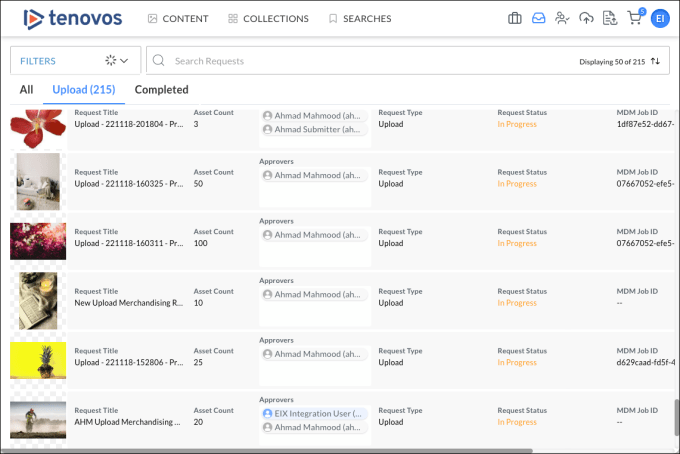
Scroll to an Upload request then click its title to open the Upload Request screen.
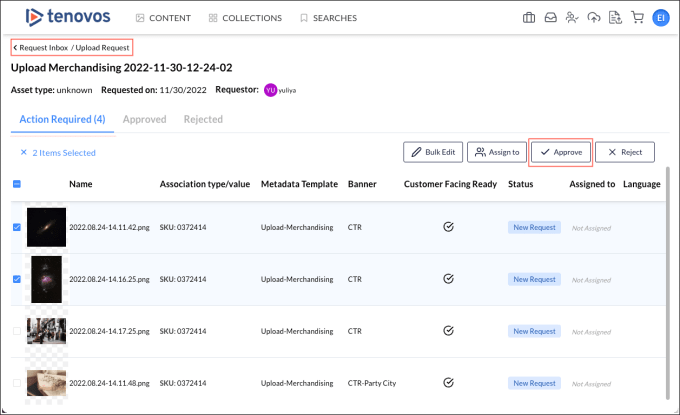
The Action Required tab displays all assets submitted for review in the Upload Request that have not yet been approved or rejected.
-
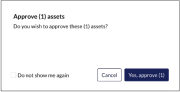
Select the assets in the request that you want to approve for addition to the Content gallery. Then click Approve in the task bar. A confirmation prompt appears.
NOTE: The task bar appears after you select one or more assets.
-
Click Yes, Approve (x). The approval is applied and the assets are moved from the Action Required tab to the Approved tab for the request.
NOTE: When you approve an asset, it is automatically assigned to you. In the Upload Request screen, your username is displayed in the Assigned to column for the asset.
Reject assets in an upload request
You can reject assets in an upload request without modifying their security or metadata templates.
IMPORTANT: You cannot modify the status of an asset after you set its Request Status to Approved or Rejected.
To reject assets in a request:
-
In the navigation bar, click Requests to open the Requests inbox.
-
Scroll to an Upload request and click its name to open the Upload Request screen.
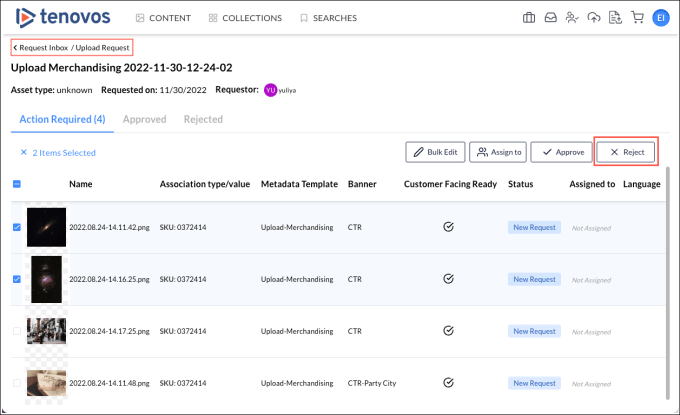
The Action Required tab displays all assets submitted for review in the upload request that have not yet been approved or rejected.
-
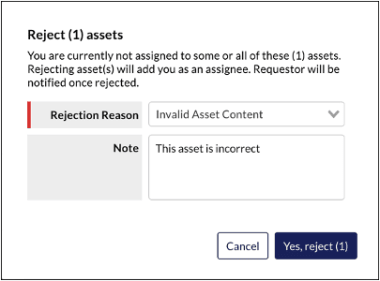
Select the assets you want to reject then click Reject in the task bar. The Reject (x) assets window appears.
NOTE: The task bar appears after you select one or more assets.
-
Choose a Rejection Reason and enter a note, then click Yes, reject (x). The update is applied and the assets are moved from the Action Required tab to the Rejected tab for the request.
NOTE: When you reject an asset, it is automatically assigned to you. In the Upload Request screen, your username is displayed in the Assigned to column for the asset.
Review download requests
The Download Request Form (DLRF) controls asset downloads while also collecting data about those assets—who is downloading them and why. User groups assigned the Request Download permission must complete a Download Request form before they can download assets.
For more details about the Download Request Form, see the Download requests guide. Topics include Download requested assets, Feature requirements, Metadata template: Download requests, and Security template: Download requests.
This section includes the following topics:
Assign assets in a download request to approvers
Approvers can assign assets in a download request to themselves or to other approvers. Only one approver can be assigned to each asset.
NOTE: If you select a Request Status for an unassigned asset, you will automatically be assigned to that asset.
To assign assets in a download request to an approver:
-
In the navigation bar, click Requests to open the Requests inbox.
-
Display the Download tab and click a request to open its Download Request screen.
The Requires Action section displays all assets in the download request that have not yet been approved or rejected. Use the asset thumbnail context menu to View Rights Details or Open Asset Details. All fields completed by a requester are read-only.
Asset thumbnail context menu in a Download Request:

-
In the Requires Action section, select the assets to assign. Then open the Assigned To dropdown list and select an approver. Only one approver can be assigned to each asset.
Repeat as necessary for any remaining assets.
Submitted Download Request:

NOTE: If you select a Request Status, you will automatically be assigned the asset. For more details about request status options, see Assign a status to assets in a download request.
-
Click Save to save the assignment and return to the Requests inbox.
Assign a status to assets in a download request
The approver who is assigned to assets in a download request can update the status of those assets.
- Multiple approvers can be selected for assets in a single download request–but only one approver per asset.
- If you select a Request Status for an unassigned asset, you will automatically be assigned to that asset.
Request Status options include:
- New Request. This text is auto-selected when the request is submitted. This allows approvers to filter the New Requests in their Requests inbox.
- Approved/Done. Approves the download. The requester receives an email with a link to the asset(s).
- Cancelled/Rejected. Rejects the download. The user receives an email notification along with an explanation.
- Extension. Extends the approval process. Assets with download rights associated to them may be licensed from third parties. If the license has expired or renewal is in progress, this option allows approvers to extend the approval process until the license has been renewed.
- In Progress. Informs the requester that their request is being considered (and minimizes status queries from requesters). This status is automatically applied when an assignment is made for assets and the Download Request is saved.
- On-Hold. Pauses the download request process. The requester is notified that their request has been considered but is on hold.
To assign assets in a download request to an approver:
-
In the navigation bar, click Requests to open the Requests inbox.
-
Display the Download tab and click a request to open its Download Request screen.
The Requires Action section displays all assets in the download request that have not yet been approved or rejected.
-
In the Requires Action section, select the assets and their Request Status–New Request, Approved/Done, Cancelled/Rejected, Extension, In Progress, or On-Hold.
Repeat as necessary for any remaining assets.
- If you select a Request Status for an unassigned asset, you will automatically be assigned to that asset.
- Multiple approvers can be selected for assets in a single download request–but one approver per asset.
-
Enter optional Reviewer Notes. Internal notes are for approvers. External notes are displayed to the requester.
-
Click Save to save the assignment and return to the Requests inbox.