Publish to YouTube
For a workflow overview on publishing to YouTube, click here!
For organizations with Publish to YouTube enabled, authorized users can publish Tenovos video assets to YouTube channels. These videos are uploaded with a privacy status of Public, Private, or Unlisted. Users can publish a single video to one or more channels or multiple videos to a single channel.
Publishing a video requires connecting Tenovos to a YouTube channel, selecting the desired channel, and verifying the video's publication.
Only administrators with the Channel Admin privilege can connect Tenovos to YouTube. The ability to publish videos is controlled by the Channel Publish role privilege and the Download asset permission. Additionally, the YouTube channel must be authenticated in Tenovos, and users must be granted permission to publish videos to it.
Admin > Configurations > Publishing

When publishing a video asset, the source video is sent directly to YouTube via a job. Required details such as title, description, tags, language, channel, and privacy status, must be provided, just as they would be on YouTube. After publication, the video information and the name of the user who published the video are available in Publish Details.
Tenovos captures and tracks data about published assets. You can view and edit the data via View Publish Details in the Asset Details screen, and filter and search for it in the Content gallery. The Jobs center displays the publication status of In Progress, Failed, or Succeeded.
Once published, the video’s URL, Channel, Privacy Status, and the name of the user who published it are added to an uneditable metadata table in the asset’s Asset Details. This data can be displayed to users via Asset Badges, filters in the Content gallery, and the Channel Info metadata group in Asset Details.
At-a-glance: Publishing to YouTube
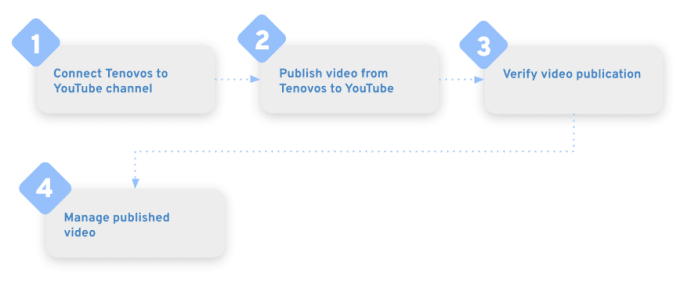
To upload videos to YouTube directly from Tenovos you will:
Supported video file types for publishing to YouTube
Tenovos supports all file types compatible with YouTube.com. This includes, but is not limited to, .MP4, .MOV, .AVI, and .WMV.
For a list of supported file formats, refer to YouTube Help’s list of supported file formats.
Connect Tenovos to a YouTube channel
Administrators with the Channel Admin privilege can connect Tenovos to YouTube accounts and grant users access to specific video visibility options. For more details, see Connect Tenovos to a YouTube channel in Content administration.
Publish video assets to YouTube
Users with the Channel Publish privilege can publish video assets they are authorized to download to any YouTube channel assigned to them. They can publish a single video to one or more channels or multiple videos to a single channel.
The option to Publish to YouTube is only available for supported file types and to users with the required role, privileges, and group assignments.
To publish video assets to a YouTube channel:
-
Select the video assets.
In the Content gallery, select the video assets, open the page context menu, and choose Publish to YouTube to open the channel selection window.Publish to YouTube option in Content gallery:

For a single video asset, Publish to YouTube is also available in Asset Details.
Publish to YouTube option in Asset Details:

-
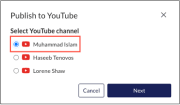
Select the publication channel(s).
In the Publish to YouTube channel(s) dialog, select the publication channel(s) and click Next.-
To publish a single video, choose one or more channels.
Publish a single video asset to one or more YouTube channels:

-
To publish multiple videos, select a single channel.
Publish multiple video assets to a single YouTube channel:
-
-
Specify the publication details.
The Publish Details screen differs based on whether you are publishing a single video or multiple video assets.-
For a single video, the Publish to YouTube dialog will display the Channels you're publishing to, and the video asset will appear in a gray bar at the top.
NOTE: To modify your channel selections, click Edit in the Channels column to return to the channel selection screen.
Publish a single video to one or more channels:
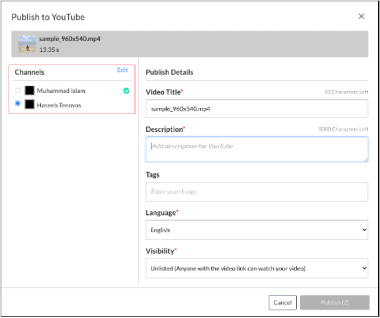
You can publish the video to one or more channels and must provide the following information for each channel:
-
Video Title. The title displayed on YouTube.
-
Description. The description displayed on YouTube.
-
Tags. Up to 500 characters of tags for YouTube. Tags must be at least two characters long. Commas are included in the character count.
-
Language. Select the video's language.
-
Visibility. Choose who can view the video.
- Private. Only you and selected people can view the video.
- Public. Everyone can view your video.
- Unlisted. Anyone with the video link can view the video.
NOTE: If the Visibility option is not available, it means you do not have permission to modify it.
-
-
For multiple videos, the Publish to YouTube window will show the destination channel in a gray bar and list the videos in the Assets column.
Publish multiple videos to a single YouTube channel
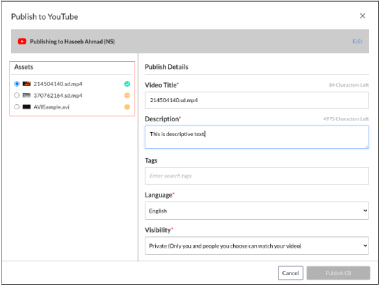
You can publish multiple video assets to a single channel and must provide the following details for each video asset:
- Video Title. The title displayed on YouTube.
- Description. The description displayed on YouTube.
- Tags. Enter up to 500 characters of tags for YouTube. The minimum length for a tag is two characters. Commas are included in the character count.
- Language. Select the language used in the video.
- Visibility. Choose who can view your video. This can be:
- Private. Only you and people you choose can watch your video.
- Public. Everyone can watch your video.
- Unlisted. Anyone with the video link can watch your video.
NOTE: If the Visibility option is not available, it means you do not have permission to modify it.
-
-
Publish the assets.
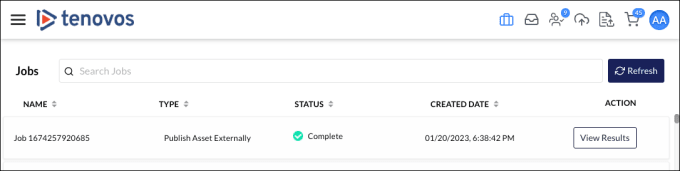
Click Publish. To monitor the publication progress and status, go to the Jobs center.
The time required to publish to YouTube will vary depending on the file size of the videos being published.
Verify video publication
You can view the publication results, review key details, and verify that the video appears on the correct channel with the intended privacy settings.
To view the results of a video publication:
-
In the Jobs center, locate the publication and click View Results in its Action column. The Publish Report window opens.
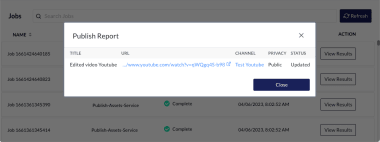
The Publish Report window displays the video asset Title, YouTube URL, Channel name, Privacy setting, and upload Status.
-
To verify that the upload was successful, click the URL. Ensure that the video appears on the correct channel and with the intended privacy settings.
Manage published video assets
You can manage published video assets in Tenovos in several ways. When you publish assets to YouTube, Tenovos captures and tracks key data about the YouTube upload, including the published video URLs. This information is made accessible in multiple ways, including through Asset Badges, the Channel Info metadata group in Asset Details, and in the Content gallery for filtering and searching.
Asset Badges visually indicate the publication status of assets, while the Channel Info metadata group provides key details such as the published channel, publish action, and video URL. Additionally, you can filter and search for assets based on publication status, such as Published or Unpublished.
To monitor publication progress, the Jobs center provides real-time status updates on uploads, indicating whether they are In Progress, Failed, or Succeeded. This makes it easy to manage and monitor the status of your video assets throughout the publishing process.
- Track published videos with asset badges
- Track published videos with Asset Details
- Filter for published assets
- Search for published assets
Track published videos with asset badges
Asset badges are indicators that appear over asset previews to show an asset's status. Administrators can define badges based on metadata attributes (e.g., Channel: Publish Action), operators (e.g., Equals or Contains), and customize their color, icon, and label.
Badges are displayed on asset previews across all Content gallery view types, and in the Home, Cart, and Asset Details pages. They appear in the lower-right corner of asset previews. If there are more than three badges, a three-dot menu displays a list of all badges.
Asset badges and More menu:

Track published videos with Asset Details
In Asset Details, the Channel Info metadata group provides information about a video asset. This group is view-only and cannot be edited admins or end-users.
The default Channel Info metadata group includes the following attributes in the Channel Info table.
- Channel: Published Channel
- Channel: Published By
- Channel: Publish Action
- Channel: Published Date
- Channel: Published URL
Filter for published assets
You can filter assets in the Content gallery using channel metadata such as Channel: Publish Action, Channel: Published Channel, and Channel: Published By.
For a full list of channel attributes, see Track published videos with Asset Details.

Search for published assets
You can search for assets in the Content gallery based on their publication status—Publish and Un-Publish.